Step 1: Go to Settings
Open the Settings menu from your dashboard.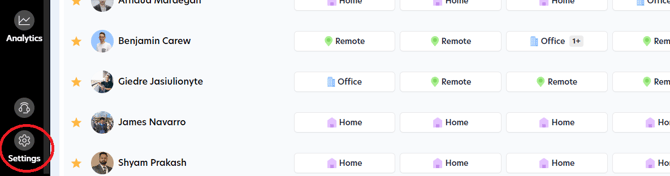
Step 2: Select Building
Click on Building to see a list of all your buildings.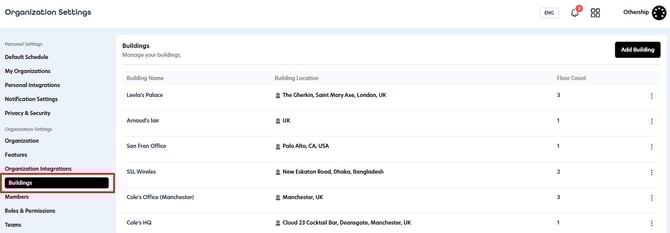
Step 3: Edit Building
Click on the  button for the building you want to update and select Edit Building.:;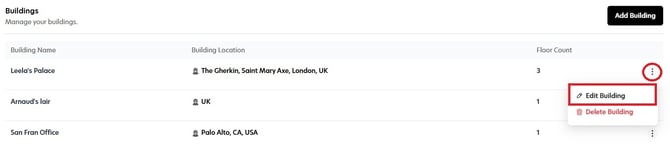
Step 4: Configure Policies
Scroll to the Policies section to review and customise your building’s desk and spaces (meeting room) policies. Toggle any policy on to activate it, and set the preferred times to match your operational requirements.
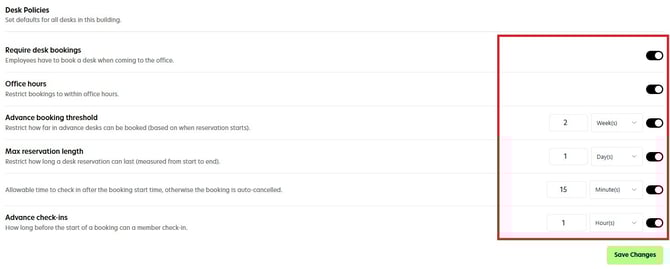
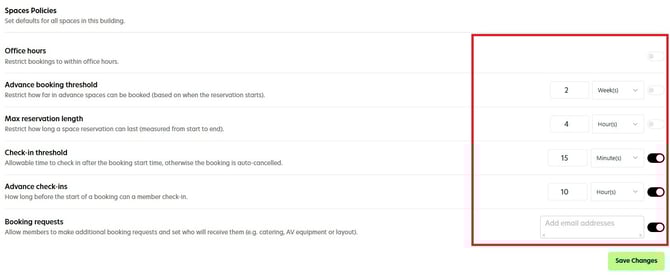
Please note the following:
-
Check-in is only available for floor plan bookings, so the building must have an active floor plan.
-
If Advance Check-Ins is turned off, users can check in any time before their scheduled start time on the same day.
-
If the Check-In Threshold is turned off, users can check in any time after the scheduled start time on the same day, The booking will not auto-cancel (because the threshold isn’t active), and no booking notifications will be triggered.
Step 5: Save Changes
After configuring policies, click on the Save Changes button to ensure your updates are active.